はじめに
自身の勉強のためにこれからいろいろ作業のメモがてら書いていこうと思います。
最初は土台作りということで、よく使われるDockerのコンテナをコマンドで起動していこうと思います。
Dockerは「アプリを動かすための環境ごとをひとつの箱にまとめる」ための仕組みです。
開発中は動いたのに本番で動かない、チームメンバーのPCごとにバージョンが違っていて挙動が安定しない、
などの問題をいい感じに解決してくれます。
Dockerとは何か
Dockerとは何なのか、どういうようなもので、何が便利なのでしょう。
Dockerはインフラ関係やDevOps界隈で注目されている技術の一つです。Docker社が開発している、コンテナ型の仮想環境を作成・配布・実行するためのプラットフォームです。
Dockerは、Linuxのコンテナ技術を使ったものでよく仮想マシンと比較されます。コンテナはホストマシンのカーネルを利用して、プロセスやユーザなどを隔離することで、まるで別のマシンが動いているかのように動かすことができます。そのため軽量で拘束に起動・停止が可能です。
Dockerはミドルウェアのインストールや書く環境設定をコード化して管理します。 こちらは今回の説明から省略して次回に書きます。
コンテナを起動させる
実行環境
- windows
- Docker Desktop
コマンドを実行
手始めに簡単なコンテナを起動させてみましょう。 下記コマンドを実行してください。
docker run hello-worldすると以下の用に表示されると思います。
Unable to find image 'hello-world:latest' locally
latest: Pulling from library/hello-world
17eec7bbc9d7: Pull complete
Digest: sha256:ef54e839ef541993b4e87f25e752f7cf4238fa55f017957c2eb44077083d7a6a
Status: Downloaded newer image for hello-world:latest

Hello from Docker!
This message shows that your installation appears to be working correctly.

To generate this message, Docker took the following steps:
 1. The Docker client contacted the Docker daemon.
 2. The Docker daemon pulled the "hello-world" image from the Docker Hub.
    (amd64)
 3. The Docker daemon created a new container from that image which runs the
    executable that produces the output you are currently reading.
 4. The Docker daemon streamed that output to the Docker client, which sent it
    to your terminal.

To try something more ambitious, you can run an Ubuntu container with:
 $ docker run -it ubuntu bash

Share images, automate workflows, and more with a free Docker ID:
 <https://hub.docker.com/>

For more examples and ideas, visit:
 <https://docs.docker.com/get-started/>
これは単純に「Hello World」を表示するだけのコンテナです。 なので起動したら勝手にコンテナも停止されます。
Nginxコンテナを起動する
続いて、Nginxと呼ばれるもののコンテナを起動します。 Nginxが何者かは別記事で書ければと思います。
docker run --name nginx -p 8080:80 -d nginx説明
先ほどのhello-worldコンテナの起動時と違い、いろいろ追記されています。
- -name: コンテナに名前を付けています
- p 8080:80:8080番を80番にポートフォワードしています
- d:コンテナを裏で立ち上げっぱなししています
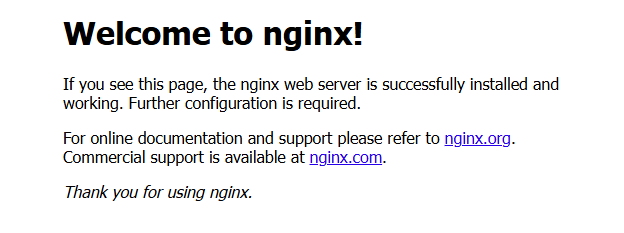
それでは、localhost:8080にアクセスしてみましょう。 下記の画面が出ればコンテナの立ち上げが成功しています。
コメントを残す